htdocs — Your Local Website Folder
The htdocs folder (short for "HyperText Documents") is where Apache looks for files to serve via localhost. When you run XAMPP, WAMP, or MAMP and put files in htdocs, they become accessible at http://localhost/ in your browser. It's essentially your local equivalent of a web server's public directory.
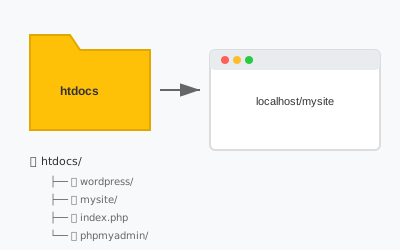
htdocs Location by Platform
| Server Stack | htdocs Path |
|---|---|
| XAMPP on Windows | C:\xampp\htdocs\ |
| XAMPP on macOS | /Applications/XAMPP/htdocs/ |
| XAMPP on Linux | /opt/lampp/htdocs/ |
| WAMP on Windows | C:\wamp64\www\ |
| MAMP on macOS | /Applications/MAMP/htdocs/ |
| Laragon on Windows | C:\laragon\www\ |
| Linux (Apache default) | /var/www/html/ |
How URLs Map to Folders
Files and folders in htdocs become accessible via localhost URLs:
| File Location | Browser URL |
|---|---|
htdocs/index.php | http://localhost/ |
htdocs/test.html | http://localhost/test.html |
htdocs/mysite/ | http://localhost/mysite/ |
htdocs/blog/post.php | http://localhost/blog/post.php |
htdocs/wordpress/ | http://localhost/wordpress/ |
Quick Start: Create Your First Page
- Navigate to your htdocs folder
- Create a file called
hello.php - Add this code:
<?php
echo "Hello, localhost!";
echo "<br>";
echo "Current time: " . date("Y-m-d H:i:s");
?>- Start Apache in XAMPP
- Open localhost/hello.php
Organizing Projects in htdocs
Create separate folders for each project to keep things organized:
htdocs/
├── index.php          → localhost/
├── project1/          → localhost/project1/
│   ├── index.php
│   └── style.css
├── project2/          → localhost/project2/
├── wordpress/         → localhost/wordpress/
└── laravel-app/       → localhost/laravel-app/public/
Installing WordPress in htdocs
- Download WordPress from wordpress.org
- Extract to
htdocs/wordpress/ - Create database in phpMyAdmin
- Visit
localhost/wordpress/ - Follow installation wizard
- Access admin at localhost/wordpress/wp-admin
Common htdocs Issues
403 Forbidden
Cause: No index file or directory listing disabled.
Fix: Create index.php or index.html in the folder.
File Not Found (404)
Cause: File not in htdocs or wrong path.
Fix: Verify file is in htdocs and URL matches file path.
PHP Code Shows as Text
Cause: Apache not running or PHP not configured.
Fix: Start Apache in XAMPP. Make sure file ends in .php
Changes Not Showing
Cause: Browser cache.
Fix: Press Ctrl+F5 (hard refresh) or clear browser cache.
Permissions (Mac/Linux)
If you get permission errors when editing files:
# Give yourself ownership (Mac/Linux)
sudo chown -R $USER /Applications/XAMPP/htdocs/

# Or make it writable
sudo chmod -R 755 /opt/lampp/htdocs/
Changing the Document Root
Want to use a different folder instead of htdocs? Edit Apache config:
- Open
httpd.confin your text editor - Find
DocumentRootline - Change path to your preferred folder
- Also change the
<Directory>path below it - Restart Apache
Location of httpd.conf:
- XAMPP Windows:
C:\xampp\apache\conf\httpd.conf - XAMPP Mac:
/Applications/XAMPP/etc/httpd.conf