Amazon Eero Login — Mesh WiFi Setup & Management
Manage your Amazon Eero mesh WiFi system through the Eero app. Like Google WiFi, Eero doesn't have a web-based admin panel — all management is done via the smartphone app. Set up your mesh network, change WiFi settings, enable Eero Secure for advanced security, and control your whole-home WiFi coverage.
Eero Management:
Download Eero App
No web login — Download Eero app on iOS or Android | Default IP: 192.168.4.1
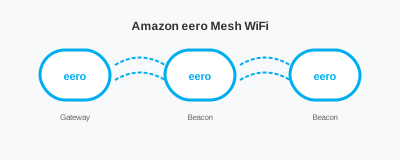
Eero System Overview
| Feature | Eero |
|---|---|
| Web Interface | ❌ No (app only) |
| Default IP | 192.168.4.1 (not accessible via browser) |
| App Required | ✅ Yes (Eero app) |
| Account Required | ✅ Yes (Amazon or Eero account) |
Note: Eero cannot be accessed via web browser. You must use the Eero mobile app for all setup and management.
How to Setup Eero
- Download Eero app — iOS App Store or Google Play
- Create account — Or sign in with Amazon
- Tap Setup Eero
- Connect gateway eero — To your modem via Ethernet
- Plug in and wait — LED pulses blue when ready
- App finds eero — via Bluetooth
- Create network — Set WiFi name and password
- Add more eeros — For extended coverage
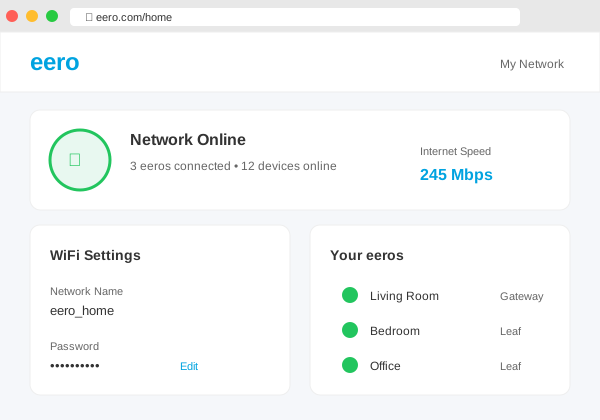
Eero App Features
- Network Health — View status of all eeros
- Speed Test — Test internet speed
- Connected Devices — See all devices on network
- Profiles — Group devices by person/room
- Pause Internet — Instantly pause devices
- Guest Network — Temporary guest access
- Eero Secure — Advanced security (subscription)
Eero Product Line
| Product | WiFi | Best For |
|---|---|---|
| eero Pro 6E | WiFi 6E | Large homes, heavy usage |
| eero Pro 6 | WiFi 6 | Medium-large homes |
| eero 6+ | WiFi 6 | Most homes |
| eero 6 | WiFi 6 | Budget option |
| eero Beacon | WiFi 5 | Extender with nightlight |
Eero Secure (Subscription)
Eero Secure adds premium features:
- Advanced Security — Threat scanning, ad blocking
- Content Filters — Block adult content, violence
- Activity Insights — Weekly reports
- 1Password — Password manager (Secure+)
- Malwarebytes — Antivirus (Secure+)
- VPN — Encrypt-me VPN (Secure+)
Manage via App
Change WiFi Password
- Open Eero app
- Tap Settings (gear icon)
- Tap Network settings
- Tap Password
- Enter new password → Save
Add Another Eero
- Open Eero app
- Tap + icon
- Select Add eero device
- Plug in new eero
- App discovers via Bluetooth
- Choose location name
Eero LED Status
| LED | Meaning |
|---|---|
| Solid Blue | Bluetooth pairing mode |
| Solid White | Connected, working |
| Solid Yellow | Starting up |
| Solid Red | No internet connection |
| No light | LED disabled in app (normal) |
Troubleshooting
| Problem | Solution |
|---|---|
| Eero not found | Ensure Bluetooth on, move phone closer |
| Red light | Check modem, restart eero |
| Weak mesh connection | Move eeros closer together |
| Factory reset | Hold reset button until LED flashes red |