MAMP — Mac Localhost Development
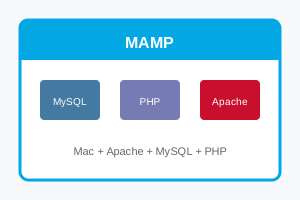
MAMP (Mac, Apache, MySQL, PHP) is the most popular local development environment for macOS. Run PHP websites, WordPress, and web applications locally on your Mac. Access sites at localhost or localhost:8888 and manage databases through phpMyAdmin.
MAMP vs MAMP PRO
| Feature | MAMP (Free) | MAMP PRO |
|---|
| Price | Free | $39 (one-time) |
| Virtual Hosts | Manual config | Easy GUI setup |
| Multiple PHP | Switch manually | Per-host PHP version |
| SSL/HTTPS | Manual | One-click |
| Cloud Sync | No | Yes |
How to Install MAMP
- Download MAMP — From mamp.info
- Open .pkg installer — Drag to Applications
- Launch MAMP — From Applications folder
- Click Start — Starts Apache and MySQL
- Status lights turn green — Services running
- WebStart page opens — localhost:8888/MAMP
MAMP Default Ports
| Service | Default Port | Standard Port |
|---|
| Apache (HTTP) | 8888 | 80 |
| Nginx (if used) | 8888 | 80 |
| MySQL | 8889 | 3306 |
Why port 8888? Ports below 1024 require admin privileges on macOS. MAMP uses 8888 to avoid permission issues. You can change to port 80 in preferences (requires password).
MAMP Directory Structure
| Path | Purpose |
|---|
/Applications/MAMP/htdocs/ | Document root (your sites) |
/Applications/MAMP/db/ | MySQL databases |
/Applications/MAMP/conf/ | Configuration files |
/Applications/MAMP/logs/ | Error logs |
Create Your First Site
- Open Finder → Applications → MAMP → htdocs
- Create new folder:
mysite
- Create file:
index.php
- Add:
<?php echo "Hello from MAMP!"; ?>
- Visit:
http://localhost:8888/mysite
Access phpMyAdmin
- URL:
http://localhost:8888/phpMyAdmin
- Username:
root
- Password:
root
Change Document Root
- Open MAMP application
- Click Preferences (or MAMP → Preferences)
- Go to Web Server tab
- Click folder icon next to Document Root
- Select your project folder
- Click OK → Restart servers
Use Standard Ports (80, 3306)
- Open MAMP → Preferences
- Go to Ports tab
- Click Set Web & MySQL ports to 80 & 3306
- Click OK
- Enter admin password when prompted
- Access site at
http://localhost (no port)
MAMP vs XAMPP on Mac
| Feature | MAMP | XAMPP |
|---|
| Native Mac feel | ✅ Yes | Cross-platform UI |
| PRO upgrade | ✅ Available | No pro version |
| Default port | 8888 | 80 |
| Nginx option | ✅ Yes | Apache only |
Troubleshooting
| Problem | Solution |
|---|
| Apache won't start | Check if port 8888 is in use |
| MySQL won't start | Delete /Applications/MAMP/db/mysql/*.pid |
| localhost not loading | Ensure MAMP is running (green lights) |
| Permission denied | Check htdocs folder permissions |